
On Linux, you can use the DisLocker tool to access data on a partition that is encrypted with Windows BitLocker. In this example, we’ll show how to decrypt data on a BitLocker partition in Linux.
Install the DisLocker utility using your package manager. On Ubuntu/Debian, run:
$ sudo apt install dislocker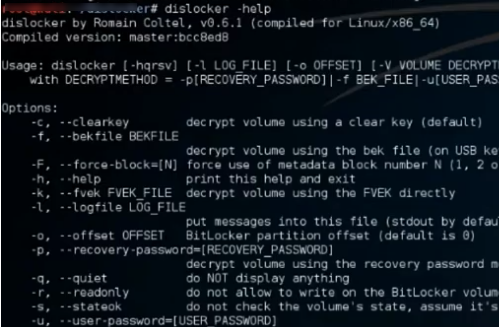
Create two directories. The first directory will be used to mount the NTFS partition:
$ sudo mkdir -p /media/bitlockerThe second directory will contain the decrypted partition:
$ sudo mkdir -p /media/mountConnect the encrypted device to the Linux host and use fdisk to get the device name:
$ sudo fdisk -lIn our example, this is a USB media drive /dev/sdb.
To decrypt the first partition on an external drive, run:
$ sudo dislocker -V /dev/sdb1 -u -- /media/bitlockerThe utility will ask for your Bitlocker encryption password. To decrypt a partition in read-only mode, add the -r option:
$ sudo dislocker -r -V /dev/sdb1 -u%password% -- /media/bitlockerIf you have a BitLocker recovery key, you need to change the command:
$ sudo dislocker -V /dev/sdb1 -p%RECOVERY_PASSWORD% -- /media/bitlockerAfter the command completes, the dislocker-file will appear in the target directory. This file is a virtual NTFS partition
Now you can mount the file to access the decrypted files:
$ sudo mount -o loop /media/bitlocker/dislocker-file /media/mount
I’ve been trying to access my BitLocker-encrypted Windows drive from Linux for months, and this tutorial finally got it working! The Dislocker tool mentioned here is a lifesaver, though I wish I’d found it before I spent hours searching on freepaycheckcalculator.org for solutions.
The boost mechanics in Kart Bros io make every race feel exhilarating. 8943fca1.
Golfers adjust for course slope using the Golf Handicap Calculator. 45a21027.